
[Power BI] Connecting SharePoint Excel File to Power BI (Web version)


Requirement
: Auto-update of Power BI report when an excel file in SharePoint is updated.

Assumptions: Power BI is already installed. User has general knowledge in SharePoint and Power BI.

Level: Beginner

Connecting SharePoint Excel File

2. On the Power BI homepage, click Get data located on the lower left corner of the page. 


3. You will be given options where to get the data you will use in your report. Select Files.


4. From the displayed options, select SharePoint - Team Sites.


5. You will be asked to enter the URL to connect to. Enter the root URL of the SharePoint site where the excel file you will use is saved.


6. The list of SharePoint folders will be displayed. 


7. Select the excel file from the SharePoint list. Click Connect.


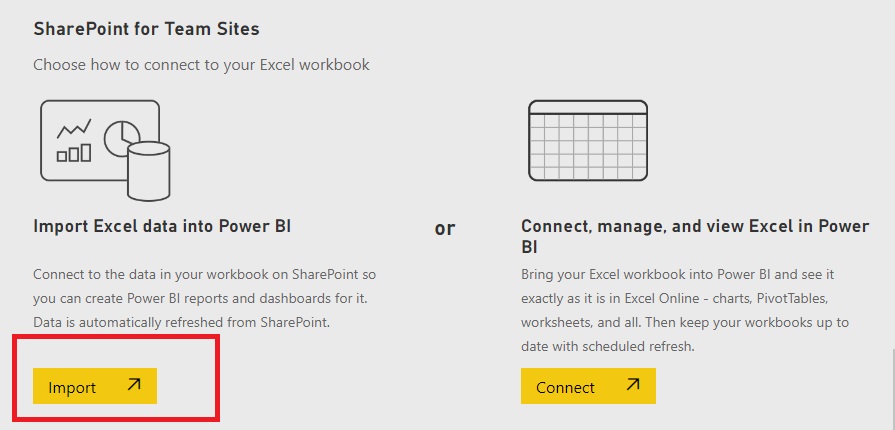
8. Click Import.

9. On the homepage, click Create and select Pick a published dataset.


10. Select the file that you want to use from the list and click Create.


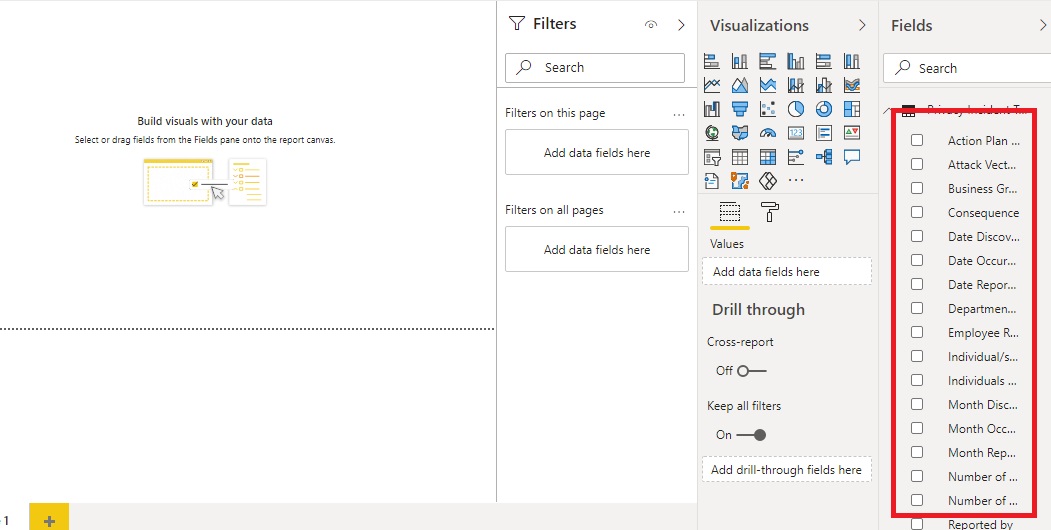
11. You are now ready to create a report from the excel data linked to SharePoint. Once you update the data in excel in SharePoint, changes will be reflected automatically in your Power BI report.


Comments

Popular posts from this blog

[SharePoint] How to Embed a Power BI Report, Form or Document to SharePoint Online

Assumption : User has full control access in SharePoint.  Level : Beginner Embedding a Power BI Report to SharePoint 1. On the upper right corner of the SharePoint page, click Edit . 2. Hover the mouse over the center and click the plus button. Click on Embed option from the list. 3. The navigation pane on the right will display a text box where you can put the website address or the embed code of your Power BI report. 4. In your Power BI report, click Share. Select Embed report > SharePoint online. 5. Copy the Embed code for SharePoint. 6. Paste the Embed code in the text box and click Republish . Embedding a Microsoft Form 1. Follow the instructions number 1 to 3 above. 2. In your Microsoft Form, click Share located on the upper right corner of the page. 3. Click the 'Embed' icon and copy the link. 4. Go to SharePoint and paste the embed code. 5. Click Republish . Embedding an Excel or a Document File For excel and word document file, just simply copy and paste the link...

[Google Sheets] Linking Data to Cell Ranges, Sheets and Another Spreadsheet

Google sheets is part of Google Workspace that organizes data in columns and rows for reporting and data analysis. In this tutorial, you will learn how to link data within tabs, between multiple tabs and from one spreadsheet to another. Before you begin To get started, go to sheets.google.com and select "blank" to open a new blank sheet. Linking Data Below are the different ways to link data in google sheets: Linking within tabs Linking between multiple tabs Linking from one spreadsheet to another Linking data within tabs 1. Click anywhere on google sheets and type anything. 2. Right-click and select Insert link. 3. Click Select a range of cells to link. 4. The "Select a data range" box will appear. 5. Select another cell within a sheet where you want to link your data. 6. Click OK . 7. Verify the cell address before you click Apply . Linking data between mul...

[Microsoft Flow] Different Types of Cloud Flow

There are three different kinds of Cloud Flow : 1. Automated Flow - automation is triggered by an event.       Examples :  When you receive an email When someone submitted a response in MS Forms When someone added, remove or modify an item in SharePoint When these events occur, the flow will be triggered automatically and the action will be executed. 2. Instant Flow - automation is triggered with a click of a button.     Examples :  When you need to send a reminder for the team When you need to review and approve proposal When you need to share a post in your social media accounts The flow is triggered manually or on-demand when the users click a button. 3. Scheduled Flow - automation is triggered on a certain data/time or frequency set by the user.      Examples : When you need to upload data to a database When you need to send an email When you need to create a dynamic record